Level up your virtual setup with pro gear for casting, interviews, and content creation — be seen, be heard, be unforgettable

Your Galaxy S25 Ultra can now take stunning underwater photos, but it might burn a hole in your pocket – here’s why

is an advanced camera app available for Samsung smartphones that gives you a lot of manual controls to take beautiful images. It has recently received a new update that has introduced Ocean Mode to the S25 Ultra.

But what exactly is this Ocean Mode, and why do I think you should avoid using it? Here’s everything you need to know.

What is Ocean Mode?

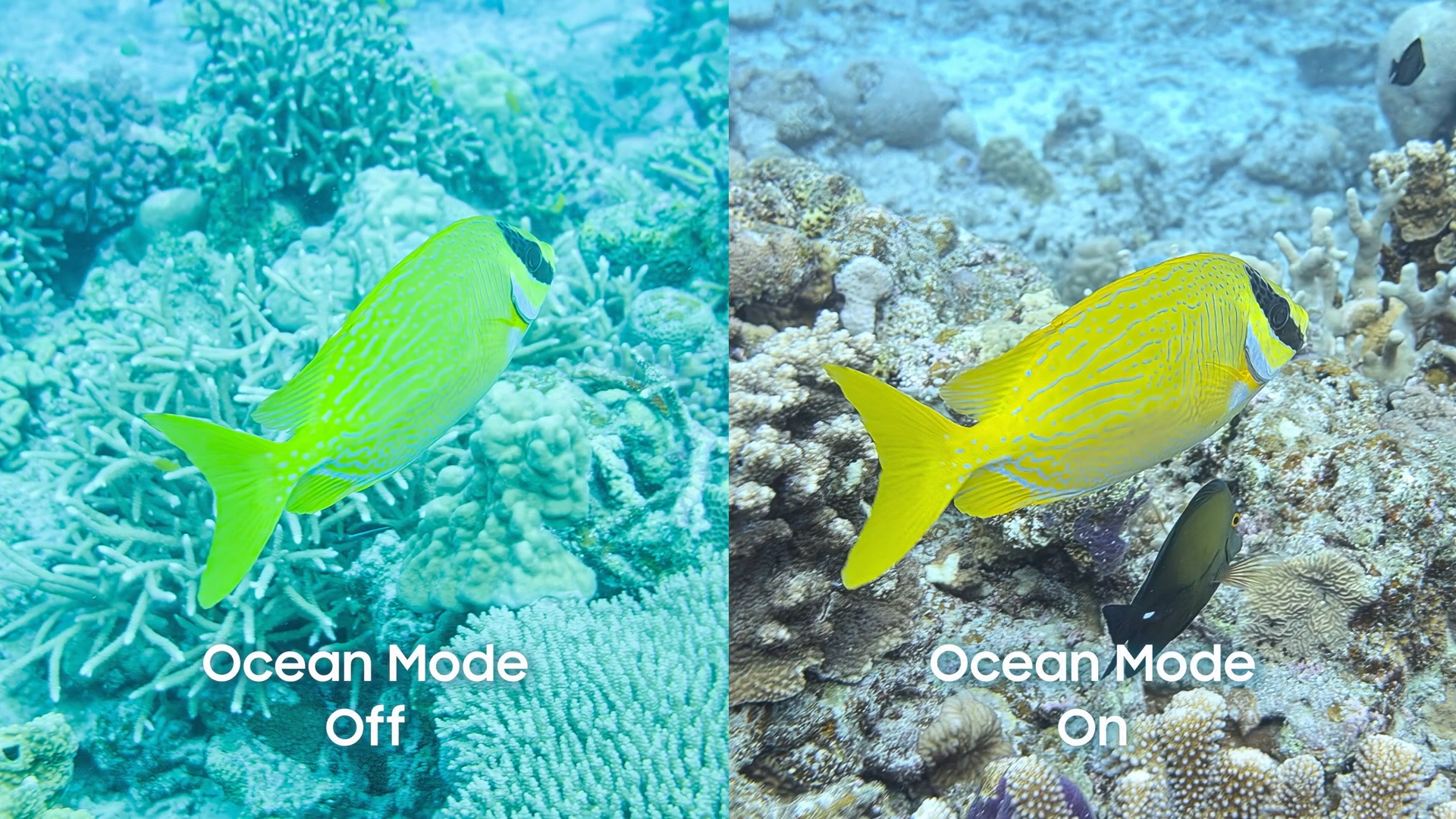
At the start of 2025, Samsung announced a partnership with a US-based non-profit organization, Seatrees. The objective of this collaboration was to assist the organization in restoring coral reefs. To help with this task, the tech giant developed a dedicated camera feature called Ocean Mode, which takes better-quality underwater photos than photos taken in normal mode.

As it turns out, when you take an underwater image with any phone, the result looks warped and very dull. In some cases, you will also find a blue or green tint on the images. Ocean Mode basically addresses all these problems.
It uses smart algorithms to fix the color and visual distortion of underwater images, and that too in real time. As a result, you end up getting images that look exactly like what your eyes see under the water.
All that said, divers who were part of the Seatrees community were then encouraged to use this feature on their Galaxy S24 Ultra to take images of coral reefs. These images were then used by the scientists to figure out the condition of the coral reefs. They were also used in the development of their 3D models.

It’s now available on the S25 Ultra

Since its introduction, the feature has been available only to members of the Seatress and Samsung partnership. But during the recently held Galaxy Unpacked event, Samsung announced that it is bringing this feature to the Galaxy S26 Ultra. Now, it is reportedly available on the S25 Ultra as well with the One UI 8.5 beta update.

Once you have the latest One UI update installed, you need to open the Galaxy Store, search for the Expert RAW app, and download its latest update. Specifically, you need to make sure that you have app version 5.0.08.2 installed on your Galaxy S25 Ultra. After downloading this update, you can follow the steps below to use Ocean Mode:
  1. Open the Camera app, and tap the More option
  2. Choose Expert RAW from the menu that appears
  3. Tap the beaker icon and choose Ocean Mode

Both Samsung and Seatrees have uploaded plenty of images online, which you can check to compare how much better the photos turn out underwater with Ocean mode enabled.

Is this feature for everyone? Definitely not

While the feature sounds impressive on paper, there’s a big catch you need to be aware of. It’s basically the IP rating of the Galaxy S25 Ultra.

As it turns out, the phone comes with an IP68 rating, which gives you assurance that it will remain safe even when used against dust or submerged in 1.5 meters of water for up to 30 minutes. The main point to note here is that Samsung only claims protection against freshwater, not saltwater as found in oceans.

When you take the device under the ocean, saltwater can damage the adhesive and other protective layers that make the Galaxy phone water-resistant. You might now wonder how the divers took their Samsung Galaxy phones underwater to photograph coral reefs. They placed their devices inside waterproof housings before submerging them.

Always use protection

As mentioned above, taking your Galaxy phone into the ocean ruins its watertight seals. It can also damage the phone’s microphone and speaker. So, you might end up spending hundreds of dollars to repair your Samsung phone if you don’t use a waterproof case for your Galaxy phone while taking images with it in saltwater.

All that said, there’s a strong possibility that this feature could land on older devices as well. That’s because it’s a software-level upgrade and has little to do with the phone’s hardware.

If you’ve made it this far, I’d highly appreciate you guys following me on X and Threads, where I share my thoughts on everything related to smartphones.

Trending Products

- 10% Video Conference Lighting Kit, Ring...
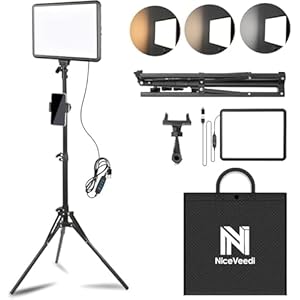
Original price was: $21.99.Current price is: $19.79.

Video Conference Lighting Kit, Ring...

0
Add to compare
- 32% 15W LED Video Light Kit
Original price was: $50.60.Current price is: $34.19.

15W LED Video Light Kit

0
Add to compare
- 25% Desk Ring Light for Zoom Meetings &...
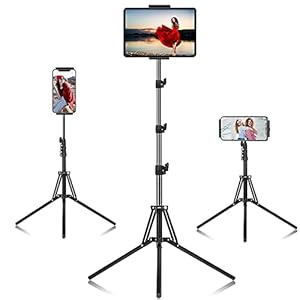
Original price was: $29.25.Current price is: $21.99.

Desk Ring Light for Zoom Meetings &...

0
Add to compare
- 37% SAMHOUSING Ipad Tripod Stand, with ...
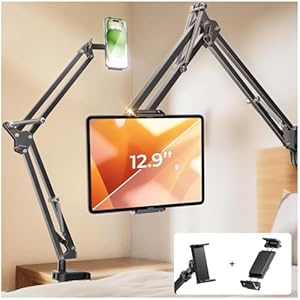
Original price was: $28.60.Current price is: $17.99.

SAMHOUSING Ipad Tripod Stand, with ...

0
Add to compare
- 40% LISEN Tablet Stand
Original price was: $44.80.Current price is: $26.99.

LISEN Tablet Stand

0
Add to compare
- 37% LanPavilion iPad Stand, Adjustable ...
Original price was: $47.38.Current price is: $29.99.

LanPavilion iPad Stand, Adjustable ...

0
Add to compare
- 28% DJI Osmo Mobile SE, 3-Axis Phone Gi...
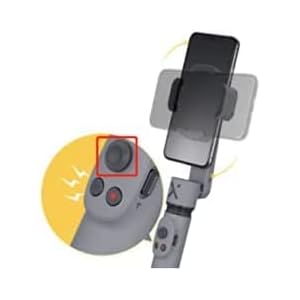
Original price was: $95.91.Current price is: $69.00.

DJI Osmo Mobile SE, 3-Axis Phone Gi...

0
Add to compare
- 33% 2pcs Original Joystick Parts for Zh...
Original price was: $22.49.Current price is: $14.99.

2pcs Original Joystick Parts for Zh...

0
Add to compare
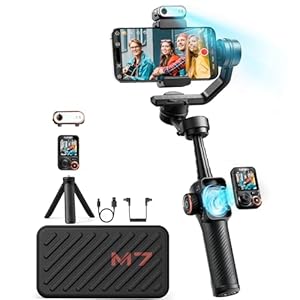
- 35% hohem iSteady M7 Gimbal
Original price was: $416.95.Current price is: $269.00.

hohem iSteady M7 Gimbal

0
Add to compare
- 20% Hohem iSteady M6 Kit Smartphone Gim...
Original price was: $209.00.Current price is: $167.20.

Hohem iSteady M6 Kit Smartphone Gim...

0
Add to compare
.

We will be happy to hear your thoughts

Leave a reply

ICU Must Haves
Logo
Register New Account
Compare items
  • Total (0)
Compare
0
Shopping cart