Level up your virtual setup with pro gear for casting, interviews, and content creation — be seen, be heard, be unforgettable

Google Maps gets a new look on Android and iOS

One of the most popular apps developed by Google, and one that was included on the first-generation iPhone, is Google Maps. Over the years Google has constantly added features and improved the app’s UI trying to improve the experience of using it. Google has now updated the icon for both the Android and iOS versions of its Maps app. The icon still shows a “pin,” but the design has been changed.

Google makes its Maps icon look more modern

The first thing you might notice about the new icon is the gradient Google colors that now blend into each other. The previous icon had individual boxes inside the “pin” diagonally situated. Each box was a different color (Blue, Green, Yellow, and Red). In addition, the new “pin” is not only larger but the circle inside it is larger as well. As a result, the top ring of the pin is much thinner.
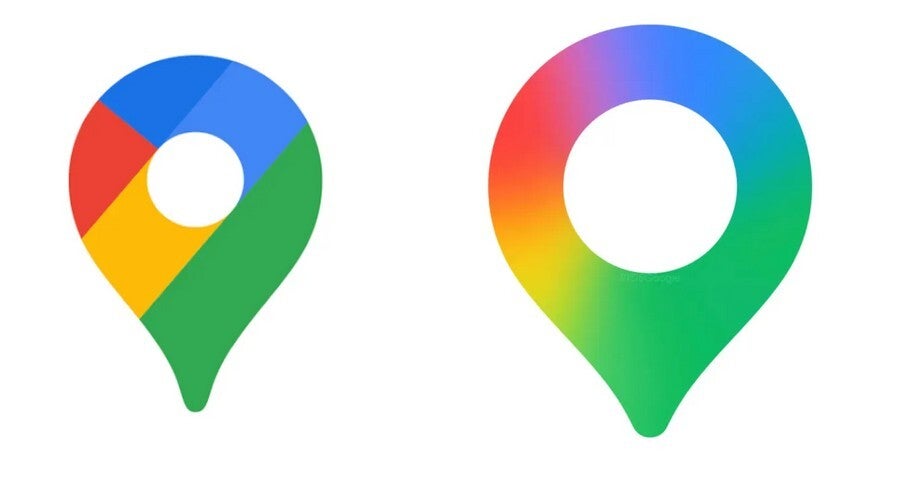
Do you recall the Google Maps icon on the OG iPhone? It showed a couple of intersecting lines, meant to be roads, one with a red pin and the other with a sign showing Highway 280. Soon, the Google Maps icon was a folded map with Blue, Green, Yellow, and White blocks. A red pin was on the right side and a lowercase “G” was in the upper left corner.  The Google Maps app icon that I associate with Android phones resembled the latter design but replaced the “G” with a capital letter.

If you don’t have the new icon on iOS or Android, you can try to coax it out by doing this

You should notice the change in version 26.09.06.873668274 of Google Maps for Android. For those using Google Maps on their iPhone, the new icon should show up in version 26.09.5 of Google Maps for iOS. While working on this story, my Pixel 6 Pro had version 26.03 of the Android app installed, which meant I had the old icon. 

But as it turned out, after checking my Pixel, I found that I had an uninstalled update for Google Maps. If you don’t have the new Google Maps icon on your phone, check for an update by following these directions:

  • Open Google Play Store and tap your profile icon in the right corner.
  • Press Manage apps & device and view “details”. 
  • Scroll down to see if you have an update for Google Maps, and if you do, tap on “Update.”
As soon as the update was completed, the Google Maps icon on my Pixel 6 Pro changed to the new look. Since my iPhone 15 Pro Max had the old Google Maps icon on the home screen, I followed these directions:
  • Open the App Store and tap the profile icon in right corner.
  • Press on Updates and scroll down to Google Maps. If there is an update for the latter, press on the Update button.

Weirdly enough, this did not work the first time I tried it. So when I returned to the Update page, I refreshed it and sure enough, a second Google Maps update appeared. I put the update through again, and this time it worked and the new icon appeared. So now I have the updated and more modern looking Google Maps icon on my daily driver (the Pixel 6 Pro) and my backup (iPhone 15 Pro Max).

Google once tried to use the Google Maps app to get more user data from Apple

Speaking of Google Maps, I first used the app in 2007 on my iPhone. Two years later I got to experience Google Maps with turn-by-turn directions on the Motorola Droid, the first phone to be equipped with Android 2.0. It seemed like magic at the time, and it was one of the initial selling points for the Droid and Android phones. It wasn’t until December 2012 that the iPhone finally added that feature.

Reportedly, Google would not give Apple and the iPhone the ability to deliver turn-by-turn directions unless Apple gave Google more user data and greater integration inside the iPhone ecosystem. Steve Jobs rejected this, and it wasn’t until Apple dropped Google Maps as the default mapping and navigation app on the iPhone in September 2012 that things changed. Google released Maps as a standalone app in December 2012, which included turn-by-turn directions. Today, we take this feature for granted.

$5/mo off for 5 years on Visible premium plans

New members get $5/mo off the $35/mo Visible+ plan or $5/mo off the $45/mo Visible+ Pro plan for the first 60 months when they port-in from an eligible carrier. Use code 5OFF5 at checkout to save up to $300.


Buy at Visible

Trending Products

- 10% Video Conference Lighting Kit, Ring...
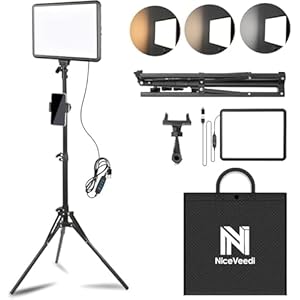
Original price was: $21.99.Current price is: $19.79.

Video Conference Lighting Kit, Ring...

0
Add to compare
- 32% 15W LED Video Light Kit
Original price was: $50.60.Current price is: $34.19.

15W LED Video Light Kit

0
Add to compare
- 25% Desk Ring Light for Zoom Meetings &...
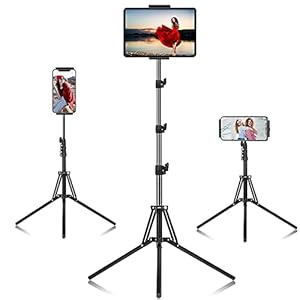
Original price was: $29.25.Current price is: $21.99.

Desk Ring Light for Zoom Meetings &...

0
Add to compare
- 37% SAMHOUSING Ipad Tripod Stand, with ...
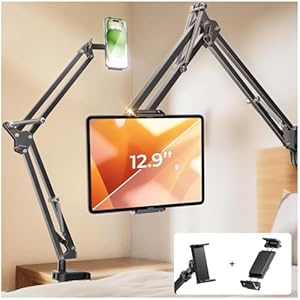
Original price was: $28.60.Current price is: $17.99.

SAMHOUSING Ipad Tripod Stand, with ...

0
Add to compare
- 40% LISEN Tablet Stand
Original price was: $44.80.Current price is: $26.99.

LISEN Tablet Stand

0
Add to compare
- 37% LanPavilion iPad Stand, Adjustable ...
Original price was: $47.38.Current price is: $29.99.

LanPavilion iPad Stand, Adjustable ...

0
Add to compare
- 28% DJI Osmo Mobile SE, 3-Axis Phone Gi...
Original price was: $95.91.Current price is: $69.00.

DJI Osmo Mobile SE, 3-Axis Phone Gi...

0
Add to compare
- 33% 2pcs Original Joystick Parts for Zh...
Original price was: $22.49.Current price is: $14.99.

2pcs Original Joystick Parts for Zh...

0
Add to compare
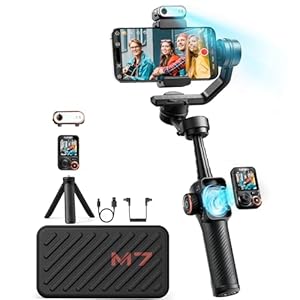
- 35% hohem iSteady M7 Gimbal
Original price was: $416.95.Current price is: $269.00.

hohem iSteady M7 Gimbal

0
Add to compare
- 20% Hohem iSteady M6 Kit Smartphone Gim...
Original price was: $209.00.Current price is: $167.20.

Hohem iSteady M6 Kit Smartphone Gim...

0
Add to compare
.

We will be happy to hear your thoughts

Leave a reply

ICU Must Haves
Logo
Register New Account
Compare items
  • Total (0)
Compare
0
Shopping cart