There are several ways an Android user can access voice search
The redesigned voice search UI features the Google logo centered at the top of the page with the back button on the left and the three-dot overflow icon on the right. You will tap that icon to go to Voice settings. From the latter you can enable Spoken results so that search results will be read aloud. You can also choose from four different voices to read search results to you (Cosmo, Neso, Terra, or Cassini) and change the primary language that your voice search is spoken to you in, with a large number of alternatives available. The dark theme has also been updated.
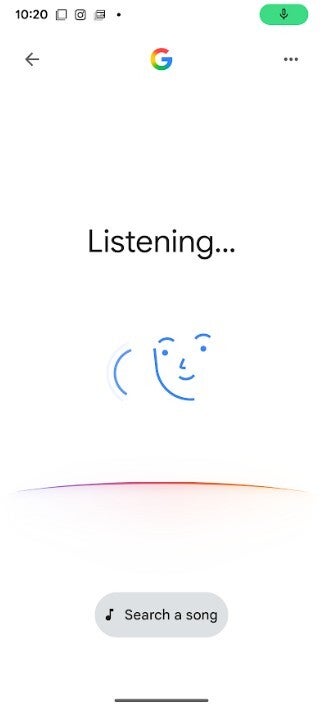
The bodyless face still appears on the revised Google voice search UI. | Image credit-PhoneArena
You can get Google’s voice search by tapping the microphone icon inside the Google Search widget on the home screen, from the persistent Pixel Launcher search bar at the bottom of the display on Pixel phones, by opening the Google app and tapping the microphone icon in the search bar. If enabled, you can open voice search hands-free by saying “Hey Google.”
Look for this beta version of the Google app to view the revised voice search UI
If you are using the search bar and the microphone icon to access voice search, as soon as you press on the icon that odd bodyless face shows up with the word “Listening” on top and a four color-arc underneath the face. Under the arc is the new and larger “Search a song” lozenge. Press it and you’ll open a song search UI that asks if you want to “Play, Sing, Hum.” The top right corner, there is a shortcut to Song Search history.
Trending Products

Video Conference Lighting Kit, Ring...
15W LED Video Light Kit
Desk Ring Light for Zoom Meetings &...
SAMHOUSING Ipad Tripod Stand, with ...

LISEN Tablet Stand
LanPavilion iPad Stand, Adjustable ...

DJI Osmo Mobile SE, 3-Axis Phone Gi...
2pcs Original Joystick Parts for Zh...

hohem iSteady M7 Gimbal